 Hringer
Tiny Slideshow
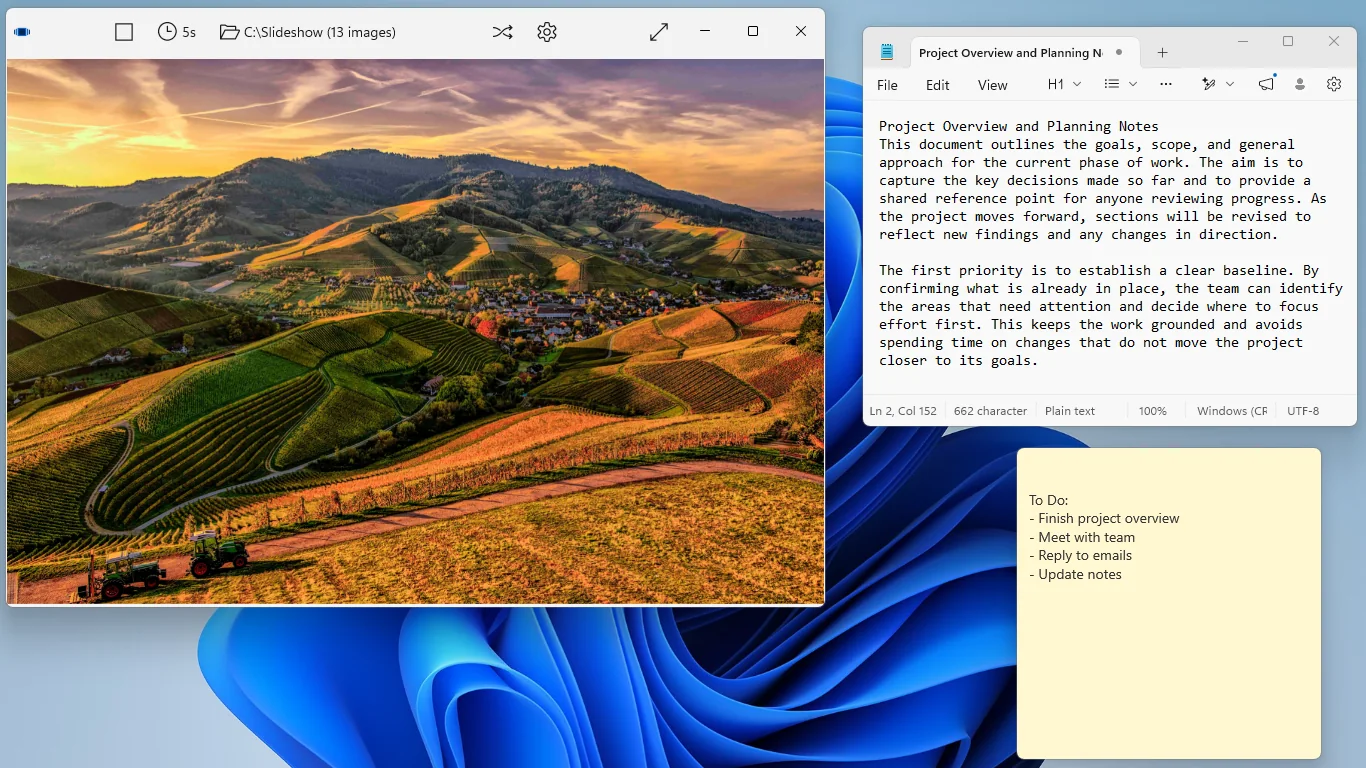
A quiet slideshow of your photos that runs on your desktop while you work.
Tiny Slideshow keeps a rotating set of photos on your screen while you work in other apps. Show photos from a folder on your PC, your iCloud Photos folder, OneDrive, or Google Photos. Resize the window to fit your layout, or go full screen for a proper slideshow.
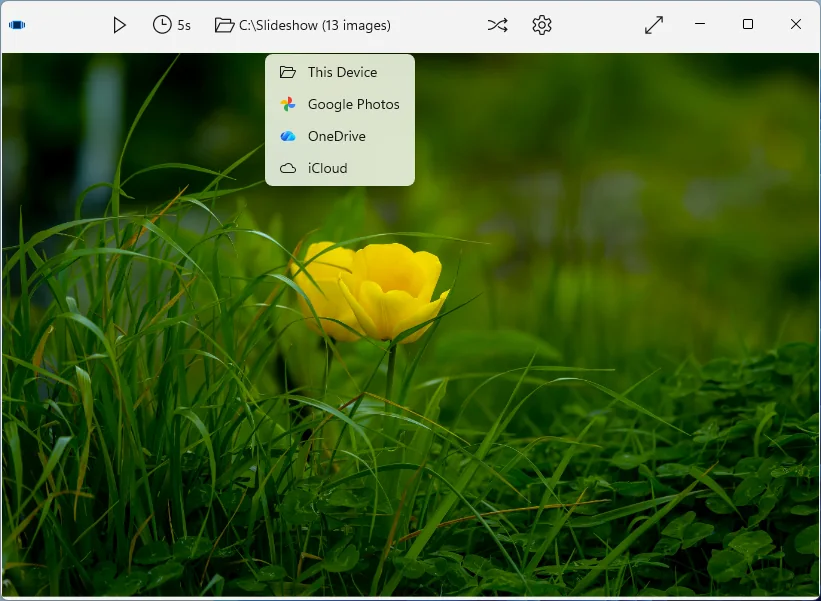
Show photos from
- This deviceAny folder on your PC. Photos are read straight from the folder.
- iCloud PhotosReads the iCloud Photos folder that iCloud for Windows syncs to your PC. Tiny Slideshow never connects to Apple's servers.
- OneDriveSign in with your Microsoft account the first time, then choose a folder.
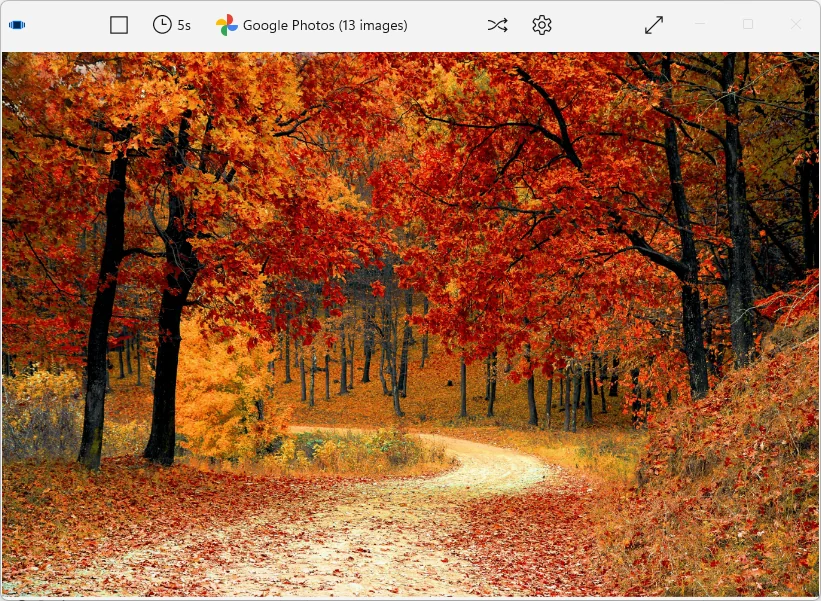
- Google PhotosSign in with Google, then pick exactly which photos to show in Google's own picker. The app only sees what you pick, and remembers your selection between launches.
What it does
- Stays out of the way. The window isn't forced on top of your other apps, and it won't stop your computer from going to sleep.
- Windowed or full screen. Size it to fit your desktop layout, or fill the screen.
- Your pace. Choose how long each photo shows (the default is 5 seconds) and turn shuffle on or off.
- Picks up where you left off. Whichever source you choose, it reopens to it on your next launch, including your Google Photos selection, which Google keeps for about a week before asking you to pick again.
- Stays current. Add or remove photos in a folder on your PC, including your iCloud folder, and the running slideshow updates by itself.
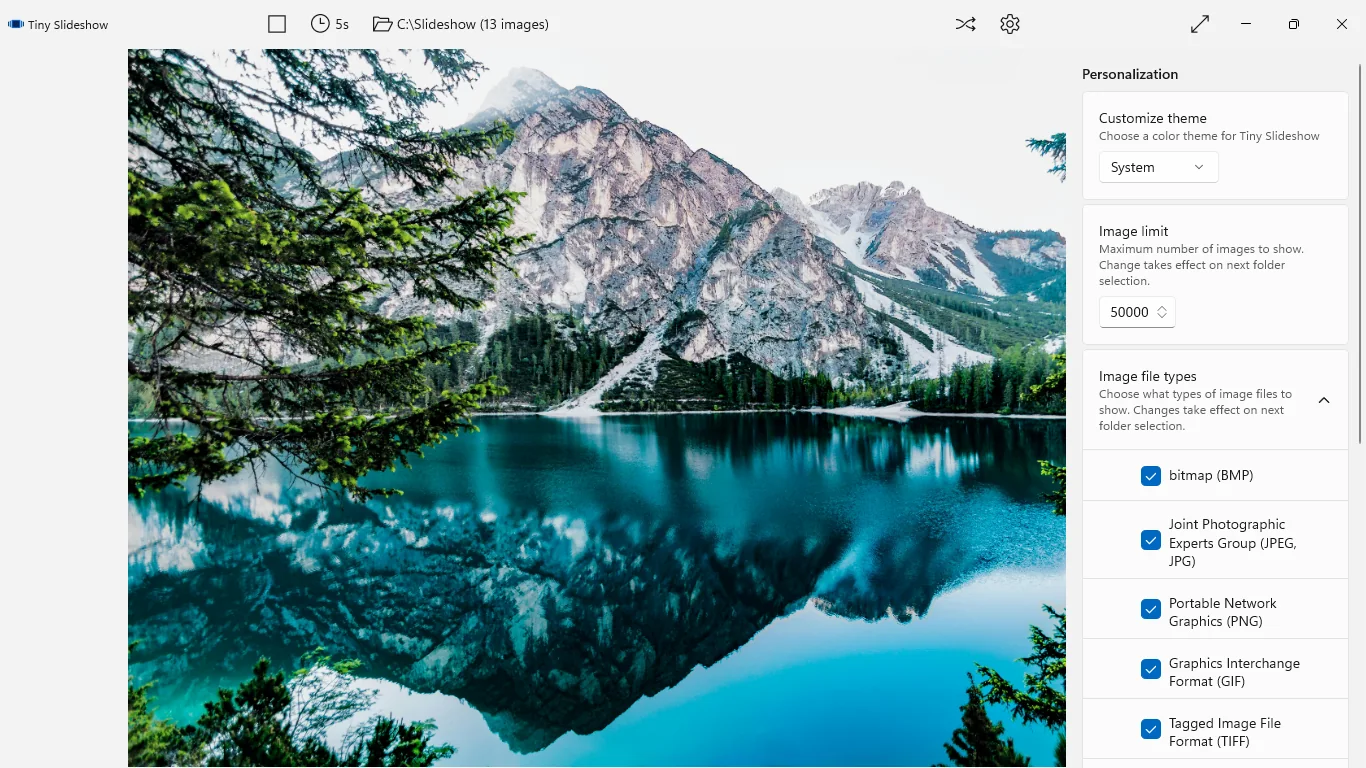
- Room for big libraries. Show up to 50,000 images, and filter by image type.
- Light or dark. Match your system theme or choose one.
- Common formats. BMP, JPG/JPEG, GIF, PNG, TIFF, ICO and HEIC/HEIF, the format iPhones use.
A closer look

Getting started
- Install Tiny Slideshow from the Microsoft Store.
- Set how long each photo shows.
- Choose your photo source and, for OneDrive or Google Photos, sign in.
- Resize the window where you want it, or go full screen.
Your photos stay where they are
Tiny Slideshow never stores copies of your photos. It shows them directly from the source you choose, and nothing is copied to or kept by the app.There are no ads, no analytics and no trackers. Read the full privacy policy.
What's new
Version 2.1
- New: HEIC/HEIF photos, the format iPhones use, now show alongside your other photos. If your PC is missing the Microsoft codec extensions needed to display them, Settings tells you and links to them.
- New: your Google Photos selection is now remembered between launches, like your other sources. Google keeps a selection for about a week, then asks you to pick again.
- Fixed: long Google Photos slideshows no longer stop loading photos after about an hour. They keep playing for as long as your selection lasts, including after your PC wakes from sleep.
- Fixed: when a Google Photos selection does expire, the slideshow stops and tells you it's time to pick again, instead of getting stuck.
- Fixed: changing your mind about a photo source no longer costs you the one you had. Backing out of a source keeps your photos, keeps you signed in, and resumes your slideshow.
- Fixed: if you close the OneDrive sign-in page without finishing, Tiny Slideshow stops waiting after five minutes and resumes your slideshow.
- Fixed: the Google Photos sign-in page no longer times out before you can finish reading it.
- Fixed: image type filters (like turning off GIF) now stay saved between launches.
- Fixed: .tif files now always show up alongside .tiff.
- Changed: "Get help" and "Send feedback" now open your email app.
Version 2.0
- Added iCloud and OneDrive as photo sources. iCloud reads from the local iCloud Photos folder that iCloud for Windows syncs to your PC; OneDrive connects to your OneDrive account.
- Raised the maximum number of images from 10,000 to 50,000. New installs now default to 50,000.
- Tiny Slideshow now remembers the source you were last showing and reopens to it on launch, so you don't have to reselect each time.
- Slideshows now update live for folder-based sources: add or remove photos in the folder you're showing and the slideshow reflects the change automatically.
Requirements
- Windows 10 (version 1809) or later, on x86 or x64.
- For iCloud Photos: iCloud for Windows installed and syncing your photos to your PC.
- For OneDrive: a Microsoft account. For Google Photos: a Google account.
- For HEIC/HEIF photos: Microsoft's HEIF Image Extension (free) and HEVC Video Extensions add-on, which not every Windows PC has. Tiny Slideshow skips HEIC photos it can't decode, and Settings tells you whether your PC can display them.